

The Account Switchboard displays all past check, accessory, and/or payment book orders for a specific account. You may view the order history for each order or begin the reorder process from this screen. For new accounts, you may place new orders from this screen.
Optional features your credit union may access from the Account Switchboard:
Run a credit inquiry (if you access LDWeb through your data processing system)
Order Passport products (for clients that use Passport products)
Order Onboarding products (for clients that use Onboarding products)
Click the NEW ORDER link. This link is available only if there is no previous order history for the account.
There are two ways to reorder products:
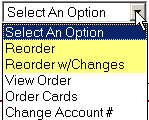
Reorder will allow you to submit a reorder with the same properties as the last order and skip the personalization pages.
Reorder w/Changes will bring you through the entire ordering process.
Click the drop-down arrow next to the order history and select the option you want:
|
|
If you access LDWeb through your data processing system and you select Reorder, the Personalization page will open and you can transfer the customer's address directly from your data processing system to the reorder. |
After you submit an order, the order will be held for approximately 30 minutes before being submitted for production. During this time, you may change the order.
Click the drop-down arrow next to the order history and select Update:
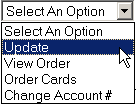
Click the drop-down arrow next to the order history and select View Order:

If the order is in production, the view button [ ] will be available instead of the drop-down list. Click the
view button to view the order.
] will be available instead of the drop-down list. Click the
view button to view the order.
Click 
If you access LDWeb through your data processing system, you can submit a credit inquiry directly from the Account Switchboard screen. Click the button that represents your credit inquiry service. The Account Inquiry screen will open.These options are available from the Account Switchboard page only if you accessed LDWeb through your data processing system. If you accessed LDWeb from the B2B site, these buttons are not available on the Account Switchboard screen. They will be available on the LDWeb Main Menu page.
|
|
Opens the Account Inquiry screen with the ChexSystems credit inquiry selected. The information from your data processing system will be transferred to the credit inquiry form, though you may still need to enter required information. |
|
|
Opens the Account Inquiry screen with the Credit Bureau credit inquiry selected. The information from your data processing system will be transferred to the credit inquiry form, though you may still need to enter required information. |
|
|
Opens the Account Inquiry screen with the Qualifile credit inquiry selected. The information from your data processing system will be transferred to the credit inquiry form, though you may still need to enter required information. |
Click the NEW ORDER link under the Passport heading and place the new Passport order.
To view past Passport orders for an account, click the drop down list next to the order history and select VIEW.
To update or change a Passport order you submitted, select UPDATE from the drop down list. Orders may be updated for approximately 30 minutes after you submit them; after 30 minutes, they are submitted for production.
Click the NEW ORDER link under the Onboarding heading and place the new Onboarding order.
To view past Onboarding orders for an account, click the drop down list next to the order history and select VIEW.
To update or change an Onboarding order you submitted, select UPDATE from the drop down list. Orders may be updated for approximately 30 minutes after you submit them; after 30 minutes, they are submitted for production.


